watsi is in Claude's connector directory. With watsi connected, Claude reads your workspace and answers with your data: who wrote in, which conversations are still open, which appointments you have. There is no URL or API key to copy: Claude signs in to watsi with your account and you choose what it can do.
You connect it once on claude.ai and it is also available in Claude on desktop and on your phone.
- 1
Open Claude's connectors
In Claude, open Customize in the sidebar, go to Connectors and choose Discover.
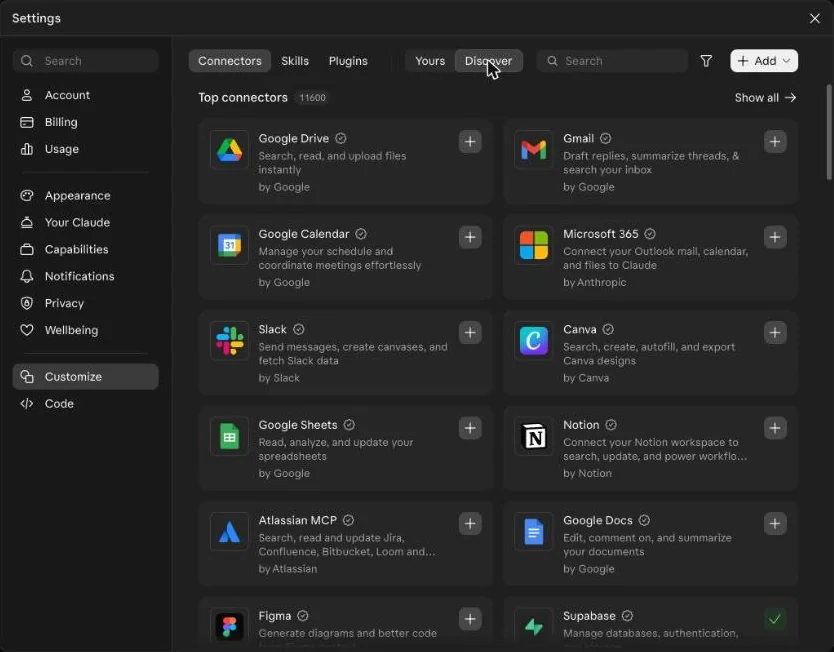
- 2
Search for watsi and connect it
Type
watsiin the search box and open watsi.
Tap Connect to Claude. watsi's page opens so you can sign in.
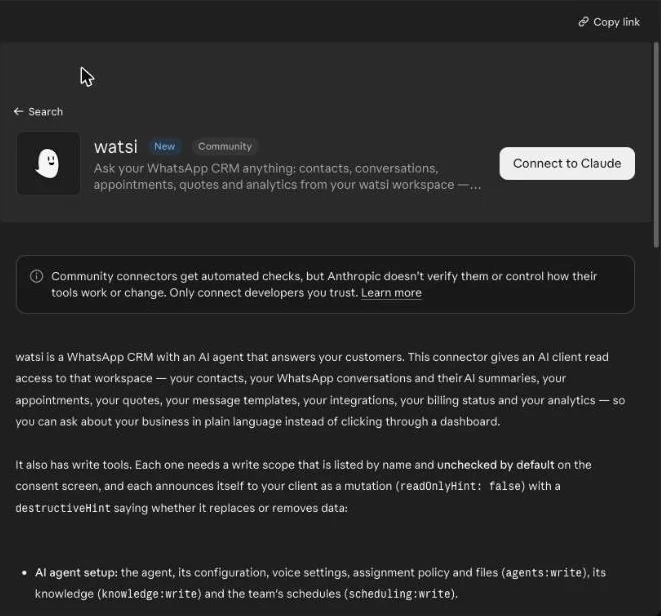
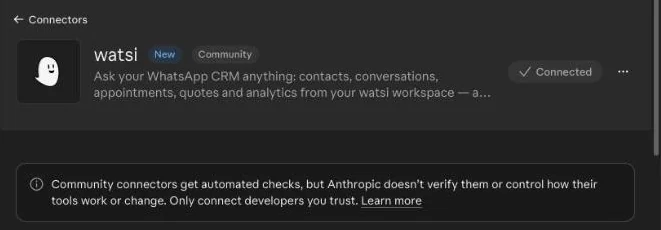
Claude marks watsi as a Community connector: it passes Anthropic's automated checks, and Anthropic does not verify it by hand.
- 3
Pick the workspace and approve
On watsi you pick the workspace and see what Claude will be able to read. Reads come ticked. Write permissions come unticked: tick them only if you want Claude to make changes too, such as replying in a chat or sending a quote, and even then every send to a customer asks you to confirm. Tap Autorizar (Authorize).
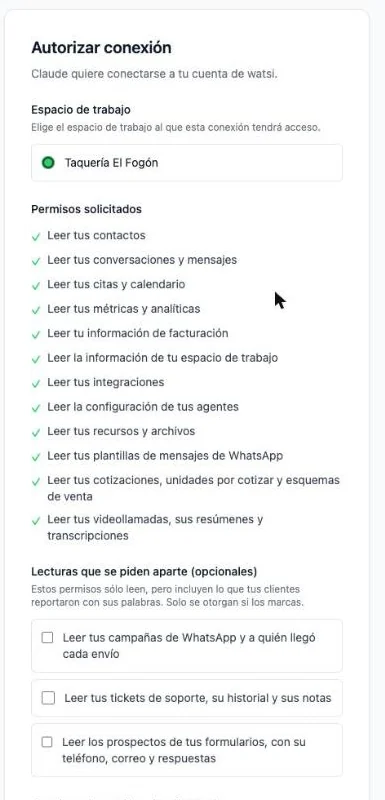
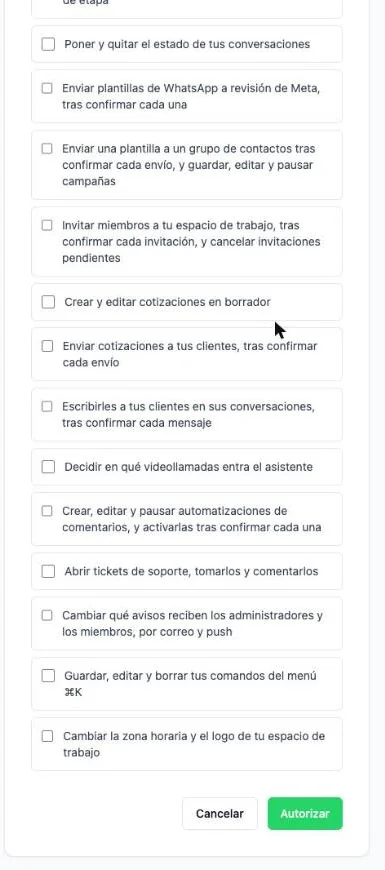
Back in Claude, watsi shows as Connected.
- 4
Ask Claude
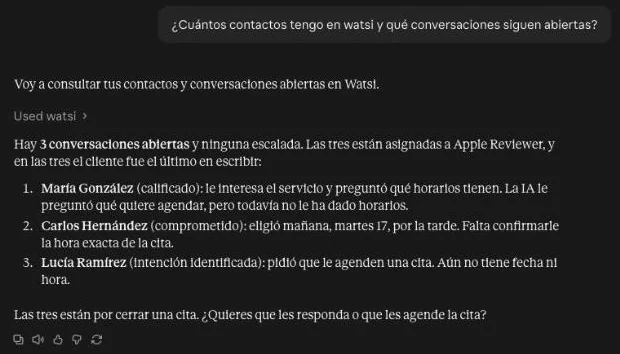
In a new chat, ask about your business, for example "How many contacts do I have in watsi and which conversations are still open?". Claude uses the watsi tools when the question needs them.
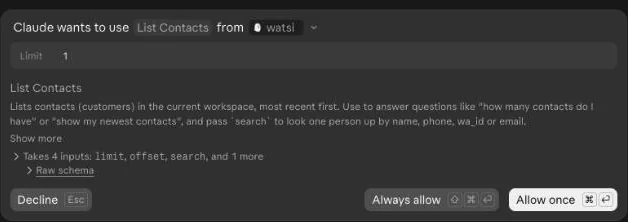
Depending on your settings, Claude asks before using each tool: tap Allow once for this time or Always allow to stop being asked.
Claude checks your workspace and answers with your data.
If something does not work
- watsi does not show up when you search. If you use Claude in an organization, whoever administers it decides which connectors can be used: ask them to enable watsi. Meanwhile, you can add it as a custom connector with the URL
https://mcp.watsi.ai/mcpfrom Add on the same screen. - You see another workspace. You connected a different watsi account. Disconnect watsi under Customize → Connectors → Yours and connect it again.
- Claude says it has no permission for a change. That action needs a write permission you did not tick. Disconnect and connect again, ticking that permission.
What each tool can do and with which permission: MCP server and What you can do.